
Understanding WordPress User Roles

 February 11, 2026

Adding a user to your WordPress site is a fundamental task, akin to adding a new hand to your workshop. Each user you bring on board, whether it’s an editor, an author, or simply someone who needs to manage comments, represents a new tool in your digital toolkit. This guide will walk you through the process, demystifying each step so you can confidently expand your team.
Before you embark on the journey of adding a new user, it’s crucial to grasp the concept of user roles. Think of user roles as different keys to your WordPress kingdom, each granting a specific set of permissions. WordPress has several built-in roles, and understanding their privileges is the bedrock of secure and efficient website management. Assigning the correct role is like giving someone the right level of access to a filing cabinet; you don’t want them rifling through confidential documents if all they need is to file a report.
The Administrator role is the supreme authority within your WordPress installation. Administrators have access to virtually every setting and function, from adding and deleting users to installing plugins and themes, and even modifying theme files. This role is the master key, capable of unlocking every door and box within your digital domain. Consequently, this role should be assigned with the utmost caution and only to individuals you trust implicitly. It is the ultimate custodian of your website’s integrity.
The Editor role is designed for individuals who will be responsible for managing the content of your website. Editors hold the power to publish and manage all posts and pages, regardless of who created them. They can also moderate comments and manage categories and tags. Think of an editor as a seasoned proofreader and content curator, capable of shaping the narrative and ensuring its quality, but not necessarily the architect of the entire structure.
Authors are the storytellers of your WordPress site. They have the ability to create, edit, and publish their own posts. However, their dominion is limited to their own creations. They cannot edit or publish posts written by other users. This role is ideal for your core content creators, those who consistently bring new ideas and articles to your platform.
The Contributor role is designed for individuals who will be submitting content for review. Contributors can create, edit, and delete their own posts, but they cannot publish them. Their work needs to be approved and published by an Editor or Administrator. This is a good role for guest bloggers or aspiring writers who are not yet ready for full publishing autonomy. They are the architects of the initial sketches, waiting for an experienced hand to bring them to fruition.
The Subscriber role is the most basic user role. Subscribers can only log in to your website, read your posts, and manage their own profile. They cannot create or edit content, nor can they access any administrative functions. This role is typically used for users who want to receive email notifications of new posts or participate in site-specific functionalities that require a logged-in status. They are your readership, the audience who has chosen to connect more deeply with your platform.
If you’re looking to expand your WordPress site by adding new users, you might find it helpful to read a related article that provides additional insights and tips. Check out this informative piece on user management and permissions in WordPress, which can enhance your understanding of how to effectively manage user roles. For more details, visit this article.
The first practical step in adding a user is to locate the user management interface within your WordPress dashboard. This is where the digital keys to your kingdom are handed out and managed. Think of this as the royal administration office, where new attendants are registered and their duties assigned.
To begin, you must first log in to your WordPress website. This is typically done by appending /wp-admin or /wp-login.php to your website’s domain name. For example, yourwebsite.com/wp-admin. Upon successful login with administrator credentials, you will be presented with the WordPress Dashboard, the central hub of your website’s administration.
Ensure you are using an account with Administrator privileges for this step. If you are unsure of your login credentials or do not have an administrator account, you will need to contact the person who initially set up your WordPress site or another administrator. This login serves as your official entry into the control center.
Once you are logged into your WordPress Dashboard, navigate to the left-hand sidebar. You will see a list of menu items. One of these items will be labeled “Users.” Hovering over or clicking on “Users” will reveal a submenu.
The “Users” submenu typically contains the following options:
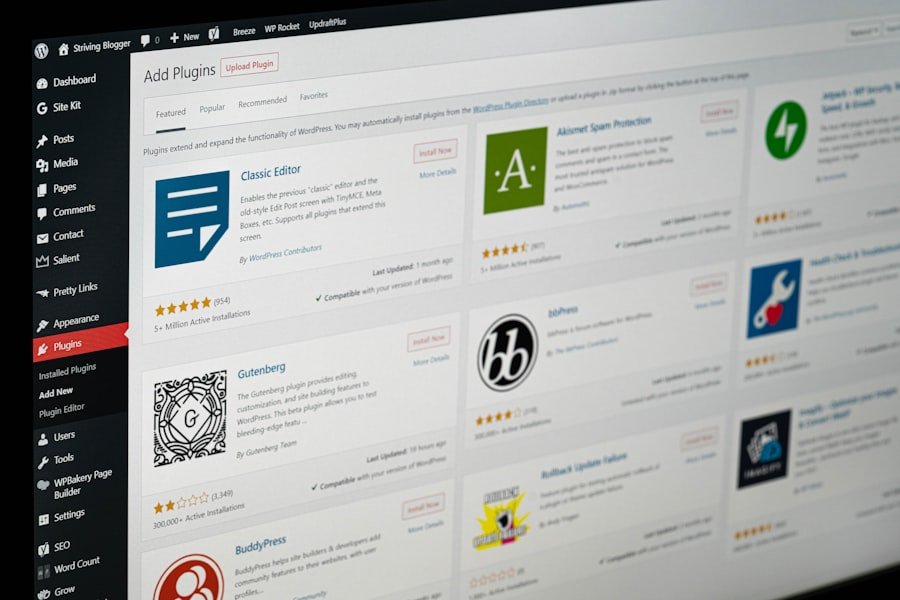
With the “Users” menu item located, you are ready to begin the process of creating a new user. This is the moment where you formally invite someone to join your digital community and assign them their specific responsibilities.
From the “Users” submenu, click on the “Add New” option. This action will take you to a new page, the “Add New User” form, where you will input the necessary information for the new user.
This form is the blueprint for your new user. Each field you complete shapes the identity and access level of this individual within your WordPress ecosystem.
The “Add New User” form presents several fields that need to be populated:

Once the basic information for the new user is entered, the most critical step is to assign them a user role. This is where you dictate the breadth of their influence and the extent of their permissions within your WordPress site.
Below the biographical field, you will find a dropdown menu labeled “Role.” This menu lists all the available user roles on your WordPress site, including the default WordPress roles and any custom roles added by plugins.
Carefully consider the responsibilities of the user you are adding and select the role that best matches their needs. Refer back to the descriptions of each role outlined earlier in this guide to make an informed decision. Assigning too many permissions can be a security risk, while assigning too few can hinder their ability to perform their tasks. It’s like selecting the right tool for a specific job – using a sledgehammer to crack a nut is inefficient and potentially damaging.
As mentioned, WordPress comes with default roles. However, many plugins introduce custom roles with specialized permissions tailored to specific functionalities, such as e-commerce management (WooCommerce) or membership site features. If you are using such plugins, you may see additional roles listed in the dropdown.
A plugin like WooCommerce might introduce a “Shop Manager” role. This role would have specific permissions related to managing products, orders, and the online store, but might not have access to general WordPress settings or user management.
If you’re looking to expand your WordPress site by adding new users, you might find it helpful to check out a related article that provides additional insights on managing user roles and permissions effectively. Understanding how to assign different capabilities to users can enhance your site’s functionality and security. For more detailed guidance, you can refer to this helpful resource on user management in WordPress by visiting this link.
| Step | Action | Description | Notes |
|---|---|---|---|
| 1 | Log in to WordPress Admin | Access your WordPress dashboard by logging in with admin credentials. | URL usually: yoursite.com/wp-admin |
| 2 | Navigate to Users > Add New | From the dashboard menu, click on “Users” then select “Add New”. | Only admins can add new users by default. |
| 3 | Fill in User Details | Enter username, email, first name, last name, website (optional), and password. | Username cannot be changed later. |
| 4 | Assign Role | Select the appropriate user role (Subscriber, Contributor, Author, Editor, Administrator). | Role determines user permissions. |
| 5 | Send User Notification | Check the box to send the new user an email about their account. | Optional but recommended for user awareness. |
| 6 | Click “Add New User” | Submit the form to create the new user account. | User will appear in the Users list. |
With all the necessary details filled in and the user role assigned, your final action is to submit the new user’s information to WordPress. This action solidifies their presence on your site.
At the bottom of the “Add New User” form, you will find a button, typically labeled “Add User.” Click this button to finalize the creation of the new user account.
Upon clicking “Add User,” WordPress will process the information and create the new user. You will usually be redirected to the “All Users” page, where you will see the newly added user listed among the existing ones. The new user will receive an email notification informing them of their new account and providing instructions on how to log in and set their password (if you chose to generate one).
Once users are added, you can always manage them. From the “All Users” page, you can edit their details, change their role, or even delete their account if necessary.
Clicking on a username in the “All Users” list will take you to their profile editing page, similar to the “Your Profile” page, but with options to modify all their details, including their role.
When a user no longer needs access to your WordPress site, you can delete their account. Be aware that when deleting a user, WordPress will ask what you want to do with the content they have created. You can either assign their content to another existing user or delete it entirely. This is a crucial step to keep your site tidy and prevent orphaned content.
Adding users to your WordPress site is a straightforward process when you understand the different roles and how to navigate the dashboard. By following these steps, you can efficiently and securely expand your team, allowing for greater collaboration and delegation of responsibilities on your website. Remember, each user you add is a potential asset to your online presence, and assigning them the right role is the first step towards unlocking their full potential.
To add a new user, log in to your WordPress dashboard, go to “Users” > “Add New,” fill in the required details such as username and email, assign a role, and then click “Add New User.”
WordPress offers several user roles including Administrator, Editor, Author, Contributor, and Subscriber. Each role has different permissions and capabilities.
By default, WordPress does not support adding multiple users simultaneously through the dashboard. However, you can use plugins or import users via CSV files to add multiple users at once.
When adding a new user, WordPress can automatically generate a password and send a notification email to the user with their login details. You can also set a password manually before adding the user.
Assign the appropriate user role with limited permissions, such as Subscriber or Contributor, to restrict access. You can also use plugins to customize user capabilities further.